Support
–>SOFTWARE DOWNLOAD<– — –> DRIVERS INSTALLATION & CONFIGURING COM PORT<–
Please note that VERIM 3.x is no longer supported and may not run under Windows 10 – 11 or higher.
Some of the older software you can find in the Archive.
You can also use the contact form in case of any questions.
We will arrange a zoom meeting for a support session.
We are glad to help you.

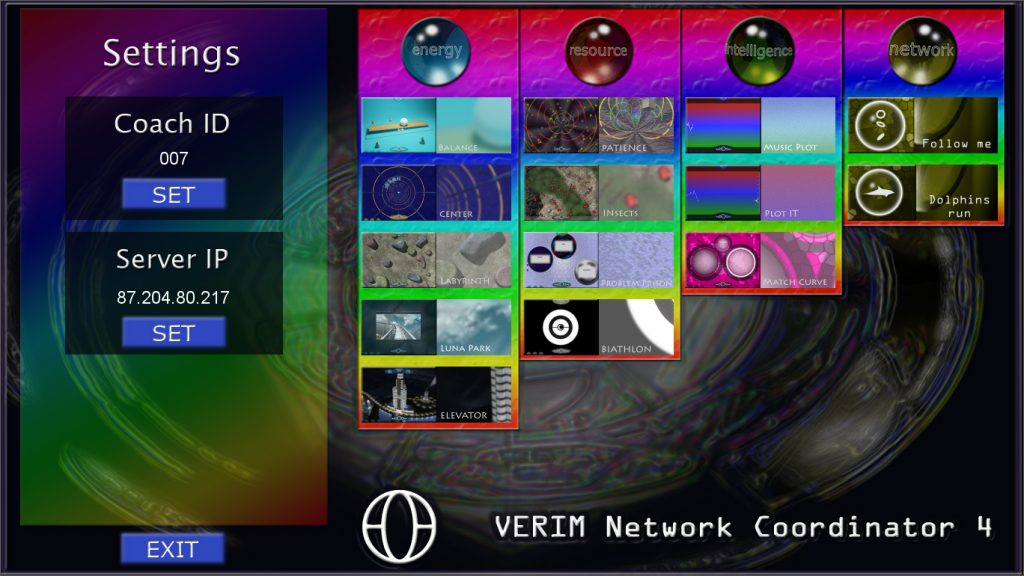

DRIVERS INSTALLATION
In order for the VERIM, VERIM LAB Pro and Mental Games software to work properly with a GSR device connected to a USB port you have to install device specific drivers. Windows may automatically install the drivers as well but sometimes it will not work properly. If this not the case please install the specific driver manually.
Installing drivers for next Mind-Reflection and next Mind-Reflection WM:

Go to the chip’s producer site. (https://ftdichip.com/drivers/vcp-drivers/) There you will find the newest versions of the drivers.
If you know exactly which system you have on your computer you can select the proper driver from the list and follow installations instructions.
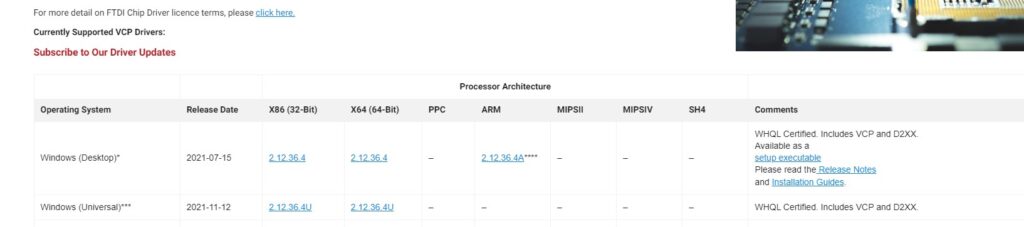
If you are not sure, please download the “setup executable” version under “Comments” and run the installer after extracting the folder into a separate directory. Follow instructions of the installer.
Installing drivers for “Mind-Reflection TSC” or ThoughtStream USB:
Go to Silicon Labs to download section (https://www.silabs.com/developers/usb-to-uart-bridge-vcp-drivers?tab=downloads). There select CP210x Universal Windows Driver:

Go to Silicon Labs to download section (https://www.silabs.com/developers/usb-to-uart-bridge-vcp-drivers?tab=downloads). There select CP210x Universal Windows Driver.
Extract the zip folder to another folder and there with right click on silabser.inf and select “Install”.
In Windows 11 you may have to find “Install” under “more”.

Follow the instructions.
Please disconnect the device from the USB port and connect again to see if the COM Port number is still the same in the device manager.
Configuring COM Port:
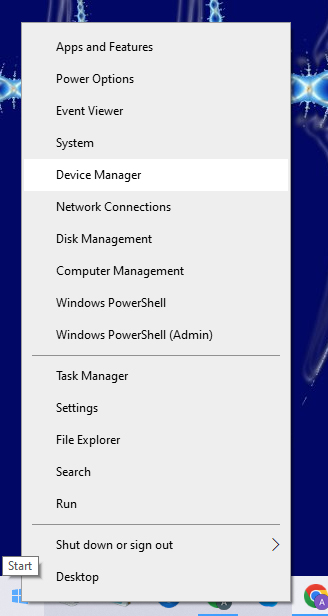
Right click on the Windows start button and select Device Manager:
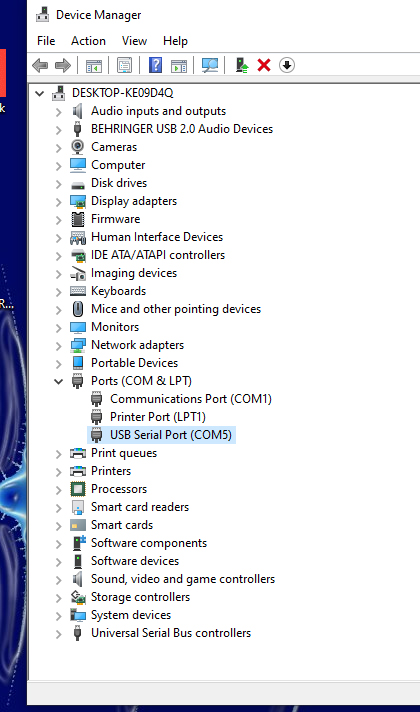
There under Ports (COM & LPT) find the port which appears when you connect your device to the USB port.
If it shows COM1 to COM9, you do not need to change the port.
If the port is over COM9 you will need to change that.
Double click.
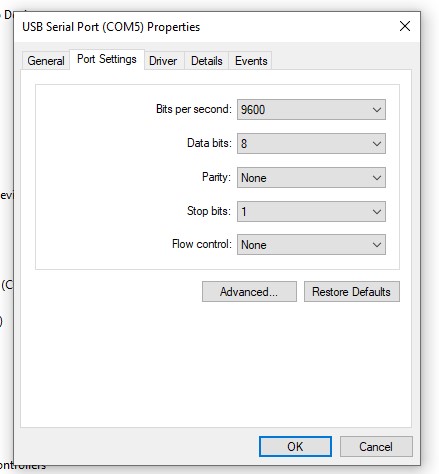
Select “Port Settings” and there click on “Advanced”.
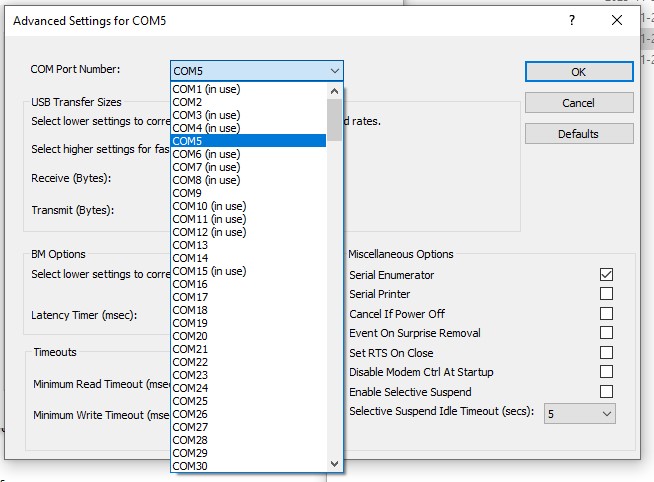
There select a port in the range of COM1 to COM9 and confirm all windows.
Please disconnect the device from the USB port and connect again to see if the COM Port number is still the same in the device manager. (Its a must with the Silab driver!)
After successful configuration on Windows you have to set the COM Port in the software itself.

Distributors:


Other platforms of VERIM OÜ:



Connected: